


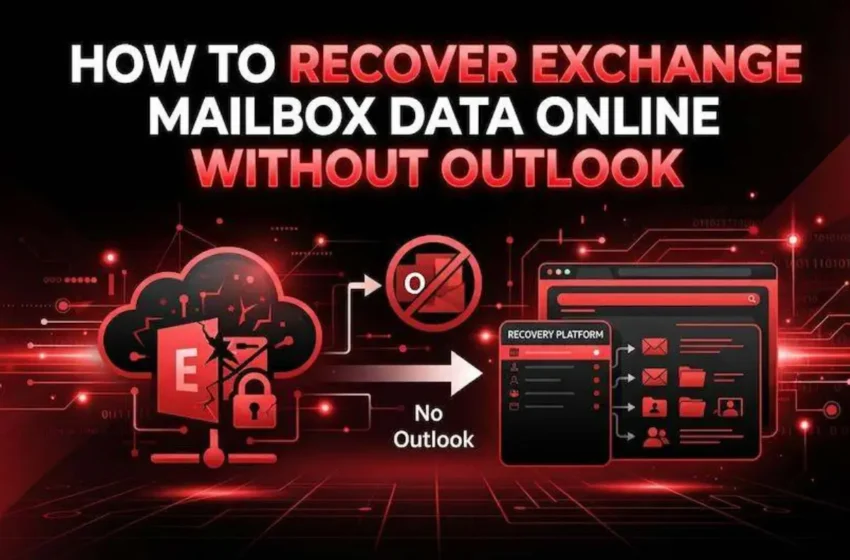
How to Recover Exchange Mailbox Data Online Without Outlook
Where an Exchange database fails to mount, all mailboxes within are inaccessible. Outlook is unable to access this information – it can access active mailboxes or PST/OST files but cannot view EDB files which are stored on a server. Data must therefore be recovered at database level.
This article provides information on native Exchange recovery tools. It goes on to explain a three-stage web-based solution called Stellar Online Exchange Repair and makes reference to the desktop version of this.
Table of Contents
Why Outlook Can’t Open the Database
An EDB is the storage used by Exchange. Within this is stored mailboxes, folders and items for all users on that database. Only Exchange is able to interpret it. Outlook is a client which can query Exchange or access a separate PST file.
If you wish to access information contained within mailboxes, then either the database needs to be repaired and/or restored so that Exchange can provide access or data can be taken from the EDB and saved in an accessible type of file (for example a PST).
Check the Database State First
Investigate to establish where the issue may be.
eseutil /mh “D:\DB01\DB01.edb”
Review the State line of the result.
- Clean Shutdown – since the database is intact it is more likely to be an issue with services, permissions or mounts.
- Dirty Shutdown – there are pending transaction logs to process. This is both the most common and easiest scenario to resolve.
Furthermore, investigate the Event Log for Jet error codes of -1018, -1022 or -1216. These indicate that there is page level database damage which typically requires more involved remediation than simply re-playing the transaction logs.
Manual Methods Built into Exchange
These need administrator access and some comfort with the command line. Try them in order, from least to most destructive.
Restore from a backup
If a recent backup is available, utilise that. Following this, mount a database and restore the information using your backup application. To prevent overwriting your live data, perform the restore operation on to a recovery database and then just import the relevant mailboxes:
New-MailboxDatabase -Recovery -Name RDB01 -Server EX01 -EdbFilePath “D:\RDB\DB01.edb” -LogFolderPath “D:\RDB”
After the database has been mounted, import this information into a real mailbox:
New-MailboxRestoreRequest -SourceStoreMailbox “User Name” -SourceDatabase RDB01 -TargetMailbox user@domain.com
Replay the logs with soft recovery
For a dirty shutdown with intact logs, this is usually enough:
eseutil /r E00 /l “D:\DB01\Logs” /d “D:\DB01”
Note: Change E00 to match your log name. Then execute eseutil /mh. If the health status is now ‘Clean Shutdown’, attach the database.
Run a hard repair as a last resort
Where there are no logs or if soft repair does not work, you can try repairing the database using:
eseutil /p “D:\DB01\DB01.edb”
This erases undecipherable pages and so there is irreversible data loss. Microsoft suggest that this should only be done where there is no database backup. Around equivalent free space to the size of the database is required. Post-repair, the database should be defragged using eseutil /d.
Repair individual mailboxes
Should only a small number of mailboxes prove problematic following database attachment, these can be repaired individually:
New-MailboxRepairRequest -Mailbox user@domain.com -CorruptionType ProvisionedFolder,SearchFolder,AggregateCounts,Folderview
During repair the mailbox is not available. Outcomes are detailed in the Application event log.
Export to PST
Having successfully exported data into a mailbox, New-MailboxExportRequest will then export it to a PST file – a format that can subsequently be accessed by Outlook. The Mailbox Import Export role must be enabled, which is not pre-enabled.
Where Manual Methods Fall Short
Manual restores can be successful where there has been limited data corruption and good backups. However, manual restoration is problematic if:
- There are no suitable backups and/or the transaction log is not available or is corrupt.
- Despite physical repairs being undertaken, the database still fails to mount or mailboxes are blank.
- The size of the database results in lengthy periods of downtime whilst running Eseutil.
Whilst only a subset of data is actually required, the process applies to the entire database.
Retrieve Exchange Mailbox Data Online in 3 Steps
Stellar Online Exchange repair also allows users to directly repair an EDB file. It does not require any Exchange Server or Outlook software and can be used on databases from Exchange 2003 up to 2019. As the repair is read only, the original EDB is left untouched. However, you will need to make a duplicate of the file to do so.
Step 1: Upload the corrupt EDB file
Launch your web browser and visit ( https://repair.stellarinfo.com/exchange/ ). Then upload your corrupt EDB file. Data is transferred across an encrypted channel to the company’s server.
Step 2: Let the service analyze and repair the file
Service can automatically analyze and fix a file. Again, this will depend on the file size, degree of damage and volume of mailbox information. Generally, the repair process takes few minutes. However, larger and more badly-damaged files may require more time.
Step 3: Preview and download the recovered mailboxes
After processing has been completed, the restored mailbox folders can be viewed via a browser to verify that correct data has been restored. A ZIP archive of PST files is created – each file corresponds to one restored mailbox. PST files can be accessed within Outlook and/or transferred to a current Exchange or Microsoft 365 server. Emails, along with supporting documents, address books, calendars, to-do lists, sticky notes, and diaries are all restored, along with folder hierarchy.
Where files exceed online storage capacity, or need to be retained on-premise, Stellar also provides a Windows-based desktop software called Stellar Repair for Exchange. Being a desktop solution means there is no file size restriction and files can be exported to PST format, as well as to an active Exchange or Microsoft 365 server. Again, typically, this software imports, analyses and then exports data. Please consult the supplier’s current specifications and export facilities prior to use.
Conclusion
Alternatively, you can also manually repair and view Exchange mailboxes. Back-up mailboxes, if possible, analyze log files and utilize the hard repair function. Should these not be successful then Stellar Online Exchange Repair can be used to repair mailboxes in three stages (upload, repair and preview followed by download) depending on file size. Alternatively, where larger files exist or where data needs to remain in-house, the Stellar Repair for Exchange software (for desktops) can also be used.
FAQs
Can Outlook open an EDB file?
No. Outlook opens PST and OST files and connects to live mailboxes. An EDB has to be restored or exported first.
Is it safe to run Eseutil /P?
Only as a last resort, and only on a copy. It removes data it can’t read.
Can I recover one mailbox without restoring everything?
Yes. A recovery database or a tool with item-level preview lets you extract a single mailbox.
Do online tools keep my data?
It depends on the provider. Stellar states that data is deleted within 24 or 48 hours depending on the plan. Read the privacy policy of any service before uploading.
Also Read: Small Business Growth Made Simple With These Easy to Implement Hacks
